Schedule an appointment
How to create, repeat, reschedule, or cancel an appointment.
In the schedule, you can plan an appointment with a client, set up a repeat, and cancel or reschedule the meeting if needed.
Where to find it
Open Schedule and click Schedule (or select a free slot in the grid).
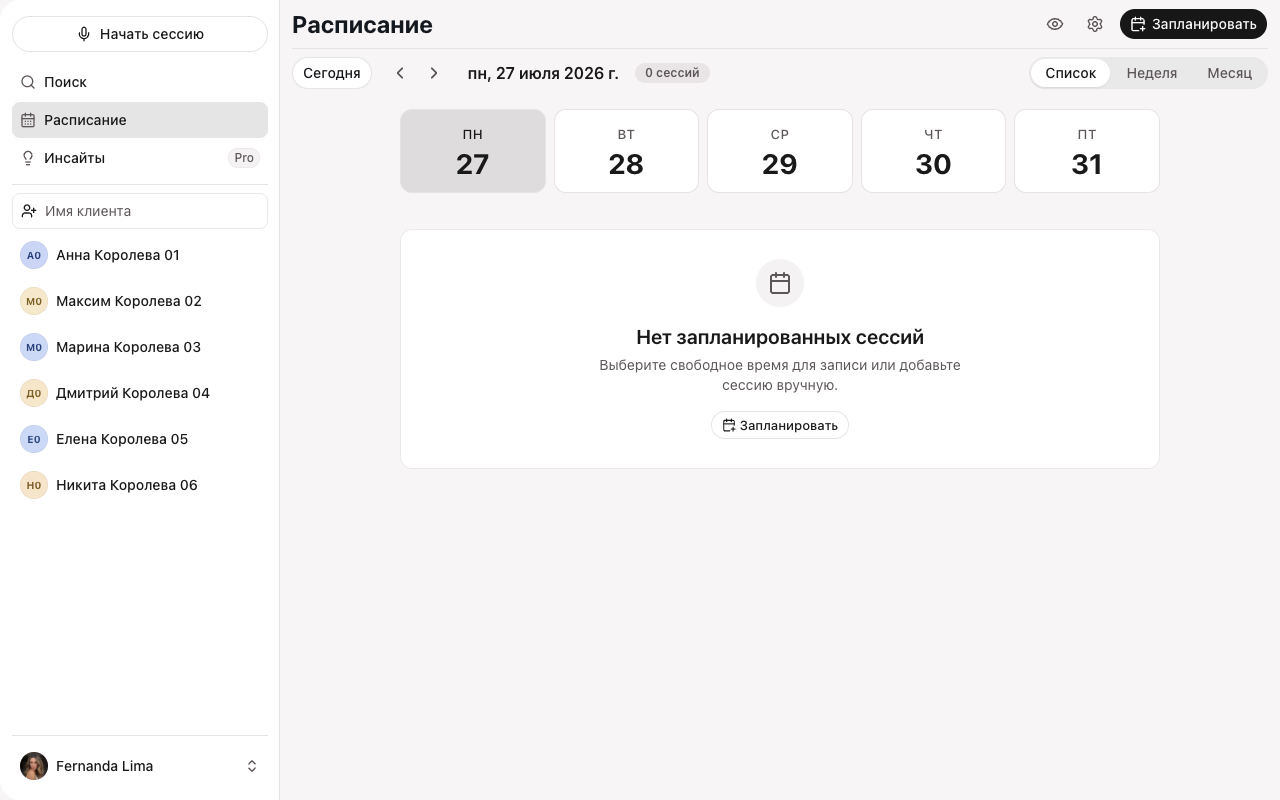
How to schedule
- Click Schedule.
- Choose a client, date, and time.
- If needed, turn on Repeat — weekly, every 2 weeks, monthly, or yearly.
- Save the appointment.
If Google Meet or Zoom is connected, a meeting link is created automatically for an online appointment. You can connect them in Settings → Integrations.
How to cancel or reschedule
Open the appointment and select Cancel or Cancel and reschedule. For a recurring meeting, Sessio asks whether to cancel a single appointment or the whole series. You can bring a canceled appointment back with Schedule again.
What you’ll see
The appointment in the schedule grid. The Hide client names button hides names when you’re sharing your screen.
If it didn’t work
- The client isn’t in the list. First add the client.
- The meeting link isn’t created. Connect Google Meet or Zoom in Settings → Integrations.