Record a session
Start, pause, and finish a meeting recording.
Sessio records a meeting directly on your Mac: your voice through the microphone and the client’s voice through the call audio (Zoom, Google Meet, and others).
Where to find it
You can start recording several ways: the Start session button in the sidebar, from search (⌘K), from the schedule, from the Sessio panel in the menu bar, or through the Call detected prompt when Sessio notices a call.
How to do it
- Select Start session.
- Choose a client, or start without one and attach it later.
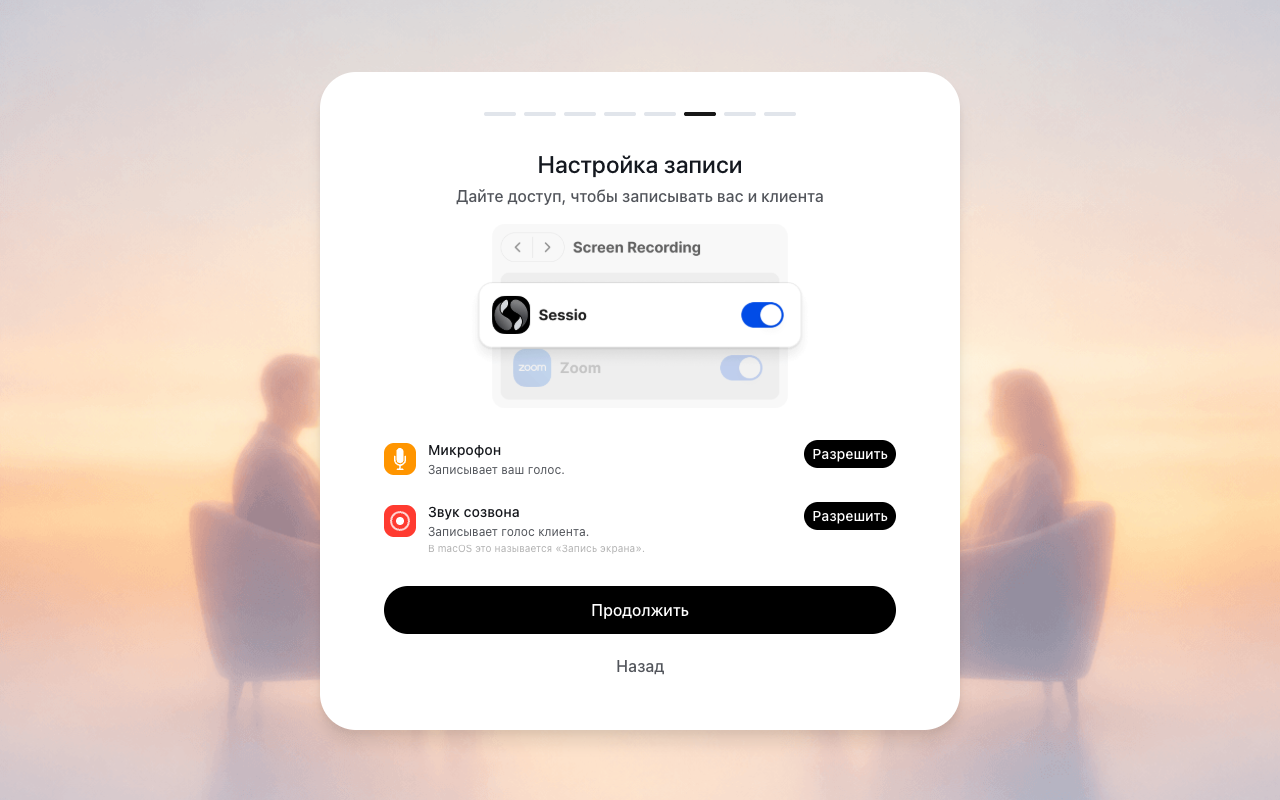
- On your first recording, grant access to the Microphone and Screen Recording.
- Start recording. During the meeting you can pause and resume it.
- Stop the recording — Sessio saves the audio and starts processing.
What you’ll see
Sessio records two sources: the Microphone (your voice) and Call audio (the client’s voice). On macOS, access to call audio is called “Screen Recording.” After you stop, upload and processing continue in the background — you can keep using the app.
If it didn’t work
If the connection dropped, the recording stays on this Mac. You can retry the upload from the Sessio panel in the menu bar. Do not delete local files until the upload finishes. See Recording issues for more.